So, you found something on the French or German Amazon that you’d really like, but you’d also like to know what the &7-’8;* buttons say?
We’re presuming you’ve registered on one of the English Amazons, and the same login credentials work for all of them.
The layout is of course identical between all Amazons, so if you’ve shopped in one you can just assume the forms are identical and navigate through that, but if you happen to be new to the Amazon layout we’ll provide a quick guide.
For the German Amazon it’s easy, just change the language to any of five languages.

On the French Amazon you can’t change languages, so here is a pictorial guide:
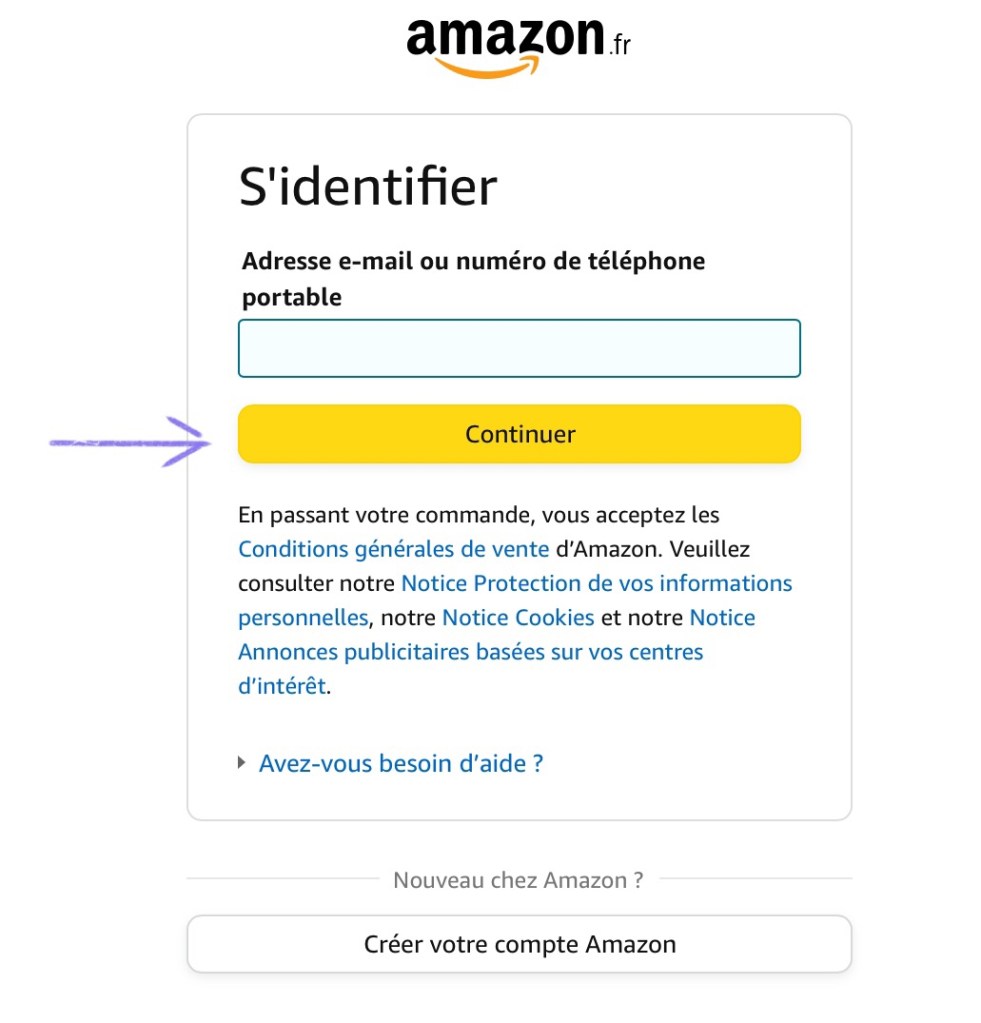
The login:

Step 2:

Step 3:
Enter your e-mail or phone and press “Continuer”
Step 4:
Enter your password and press “S’identifier”

Step 5:
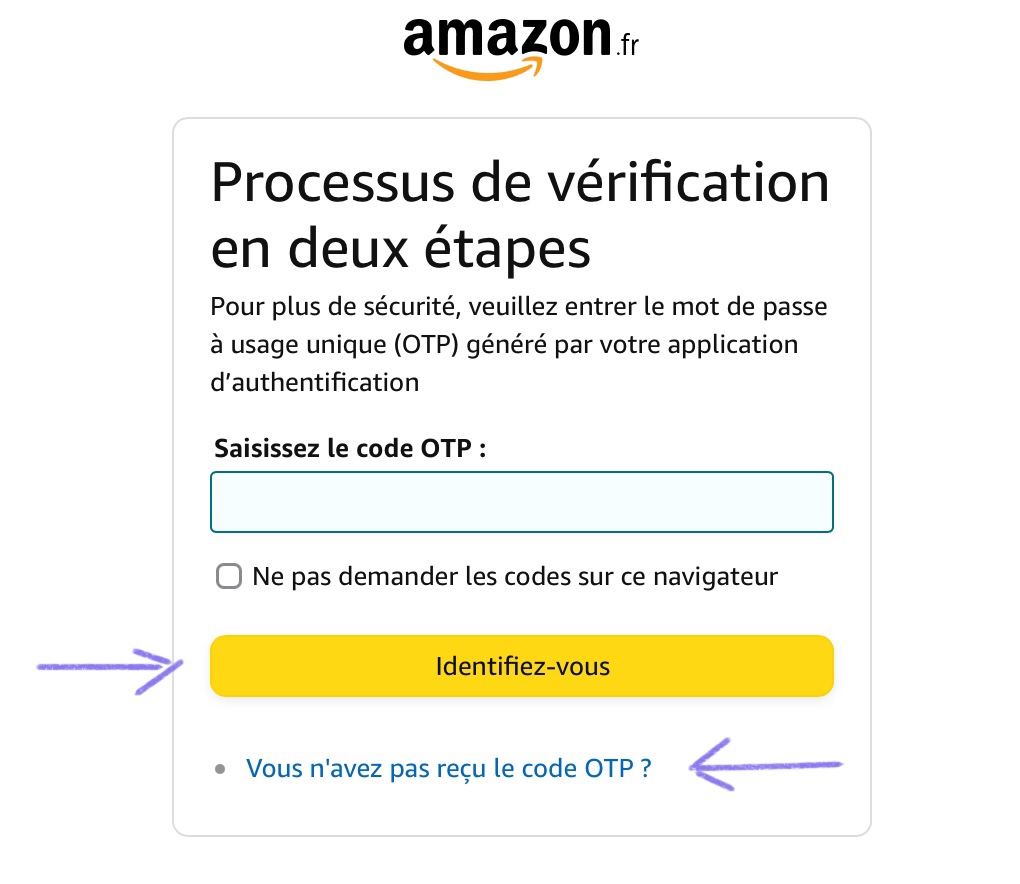
This is the 2-step verification. In this case we’re using an app for that, so we’ll just open it, get the code and then press “Identifiez-vous”. If you need another alternative, the second arrow is your choice. If you do not have an app the options will probably be an automated phone call or SMS.
Step 6:
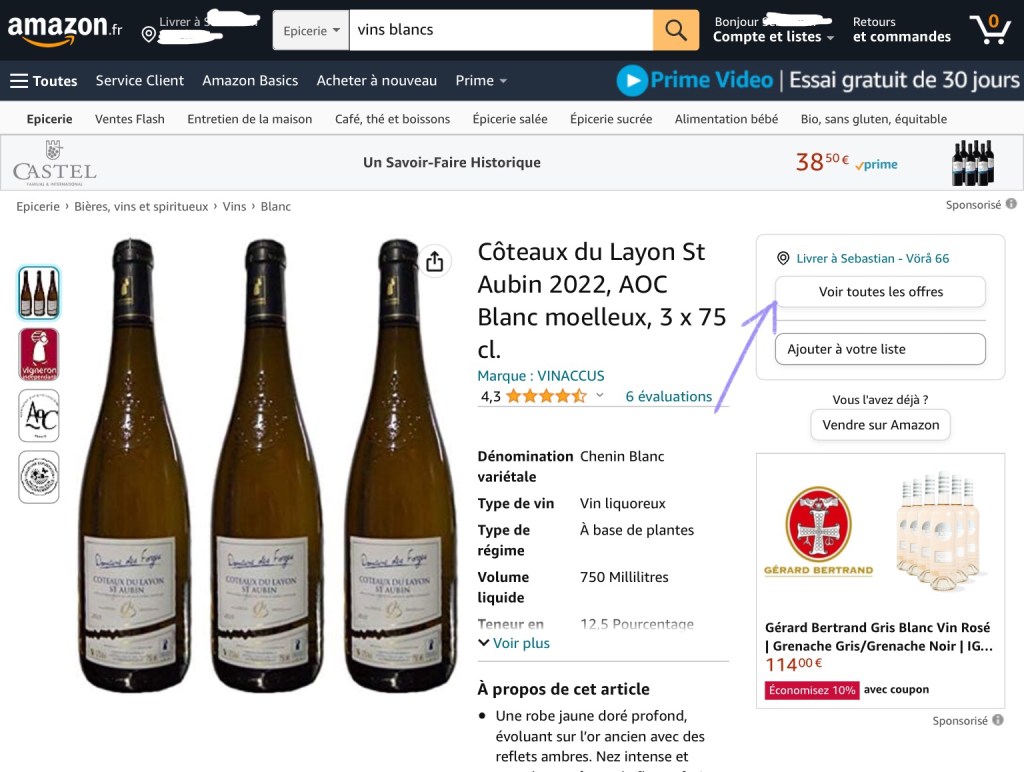
Now you’ll either be on the main page or a product page. On the product page you can choose the amount and place it in the basket (Ajouter au panier) or buy it now (Acheter cet article).

An alternate product page shows a button for the available vendors. Press “Voir toutes les offres”.
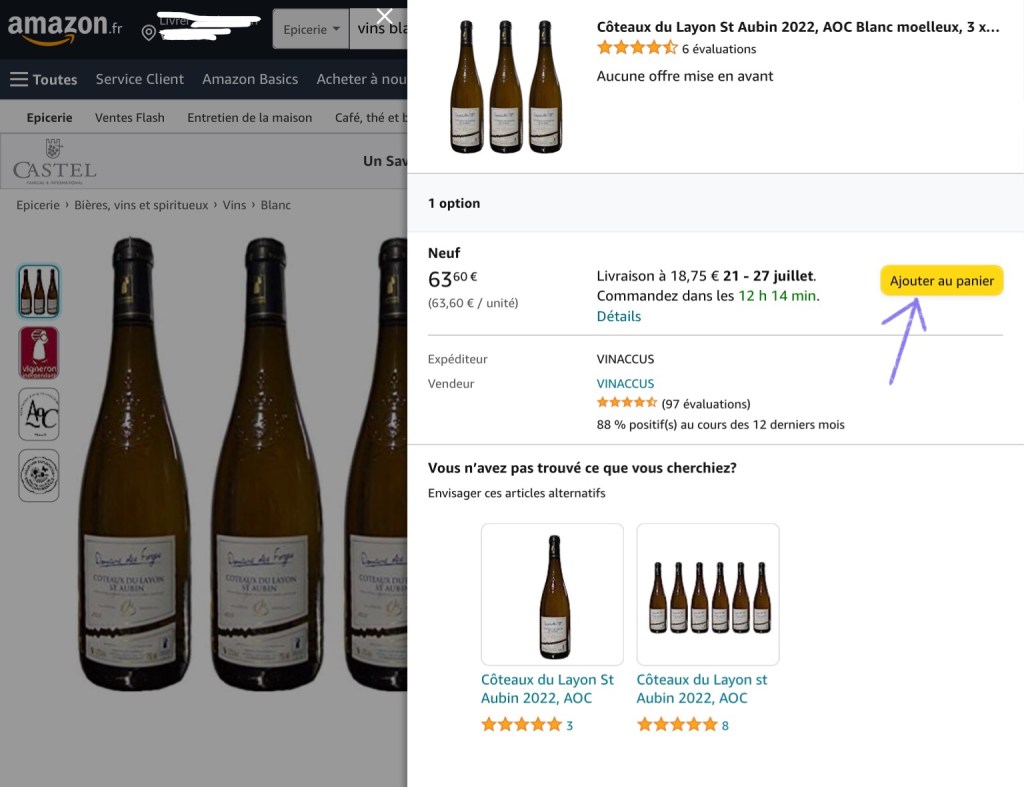
On the following page, once again press “Ajouter au panier” to place the product in the basket. Once you’ve chosen the amount, close the window from the white “X”.
Step 7:
In the following window, when you’re done shopping, press the basket icon.

Step 8:
The following screen is the shopping basket where you can select and deselect your choices with the tick-box. When you’ve chosen press “Passer la commande”.
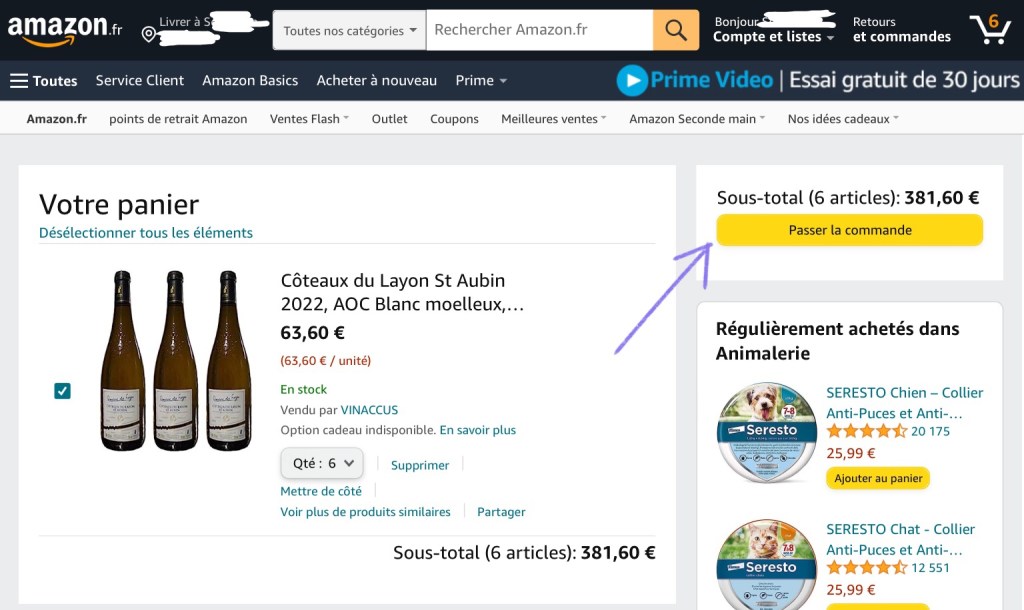
Step 9:
This is where you confirm your address. By default the address you’ve registered with is shown, but you can change it with “Modifier une adresse”. If the address is correct press “Envoyer à cette adresse”.
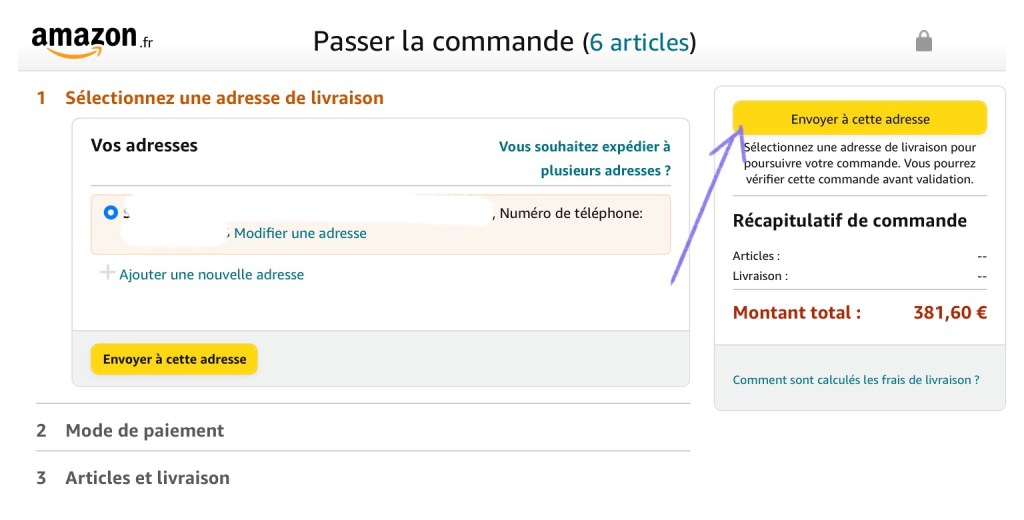
Step 10:
This is where you see the price including shipping and choose a mode of payment. If you have a previously registered card it will be there by default. Then you can just press “Utiliser ce mode de paiement”. If you want to use a different card press “Ajouter une carte de crédit ou de débit.
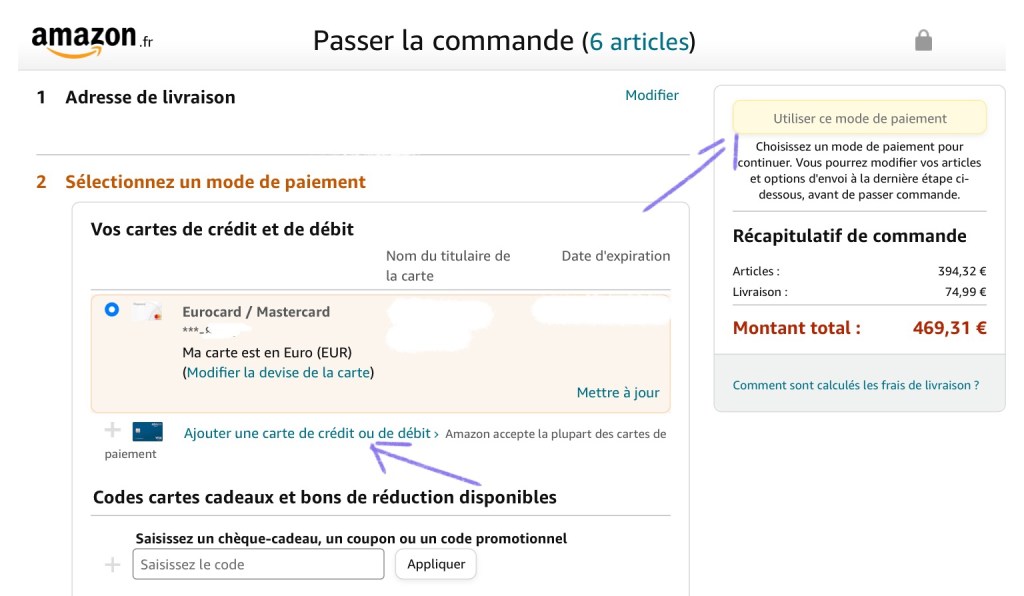
Step 11:
If you need to fill in the card details, this is the window. Card number, name of cardholder, expiry date, and the number code at the back of the card. The last choice is wether you want to save the card information for future use or not. Oui = yes, Non = no. When you’ve filled in the details press “Ajouter votre carte”.
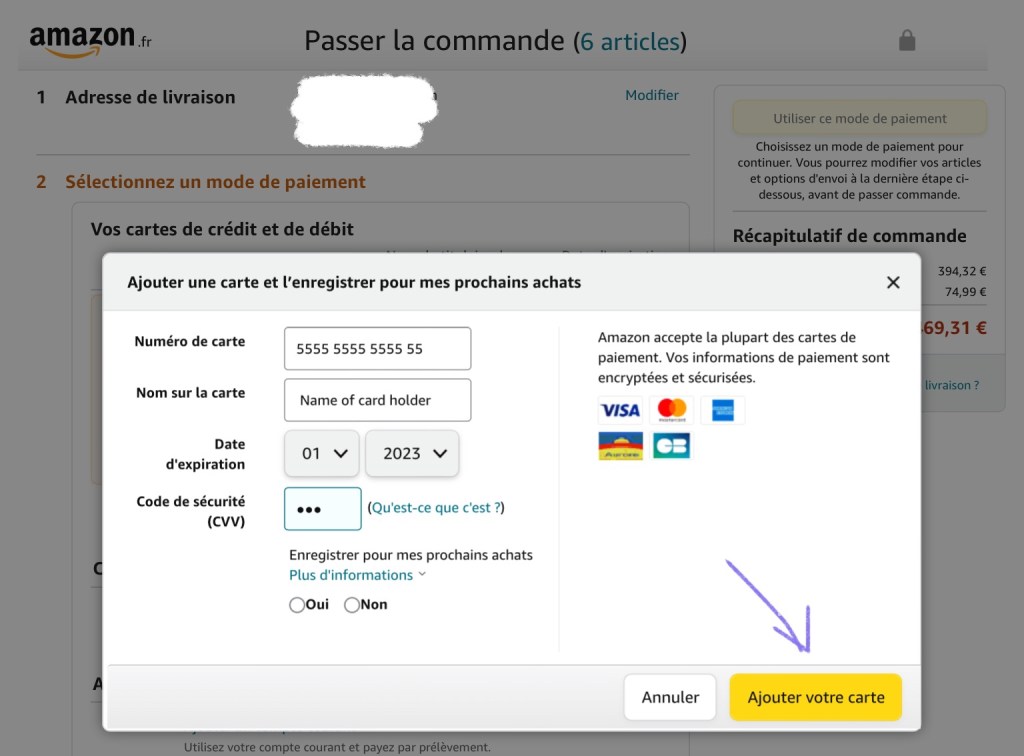
Step 12:
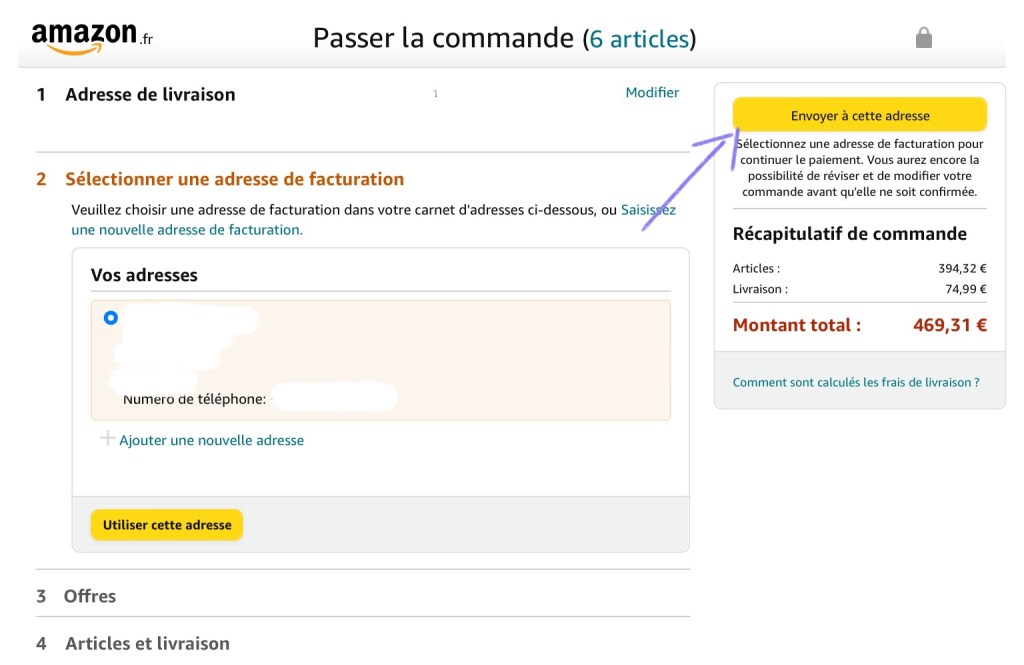
You’re now back in the previous screen and can press “Utiliser ce mode de paiement”. This will take you to the screen where you confirm your billing adress. If you wish to change it press ”Ajouter une nouvelle adresse”. If the adress is correct, press ”Envoyer à cette adresse”.
Step 13:
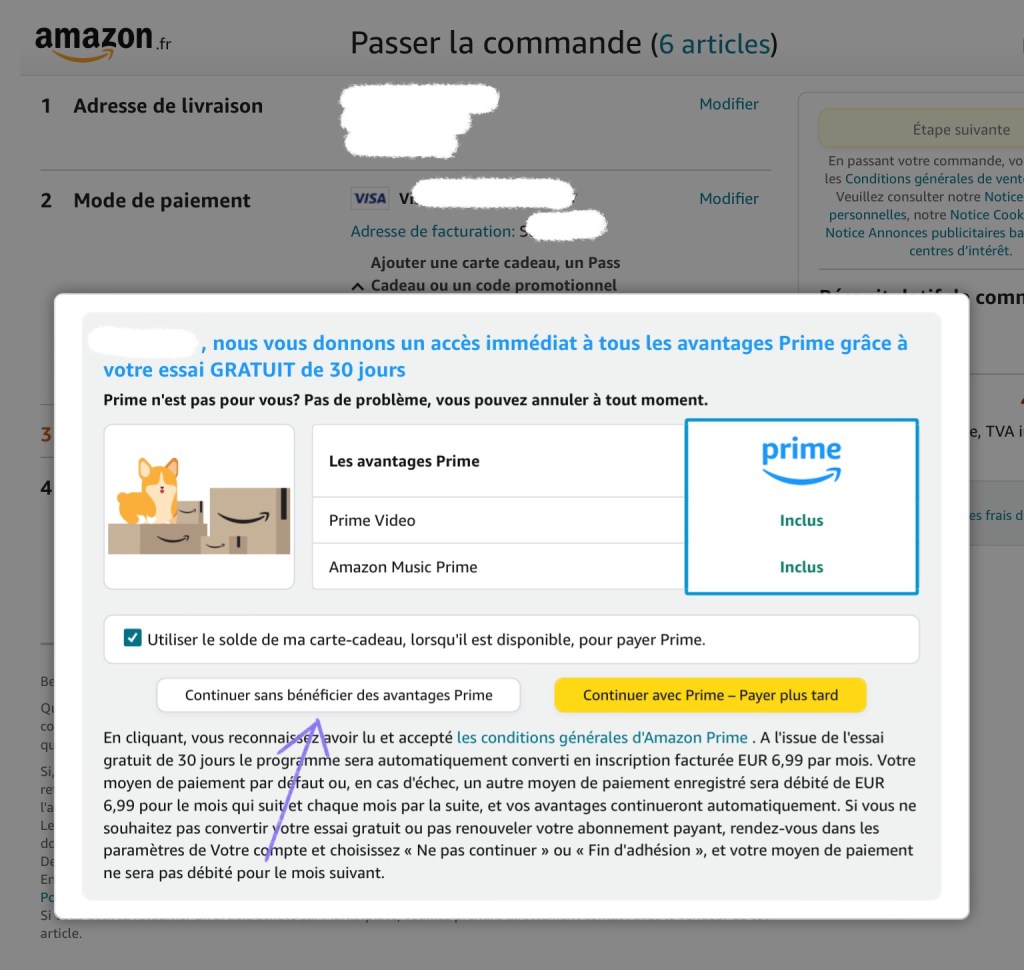
A window may appear where you’re asked wether you wish to subscribe to Amazon Prime or not. If you do, press “Continuer avec Prime – Payer plus tard”. If you don’t, press “Continuer sans bénéficier des avantages Prime”.
Step 14:
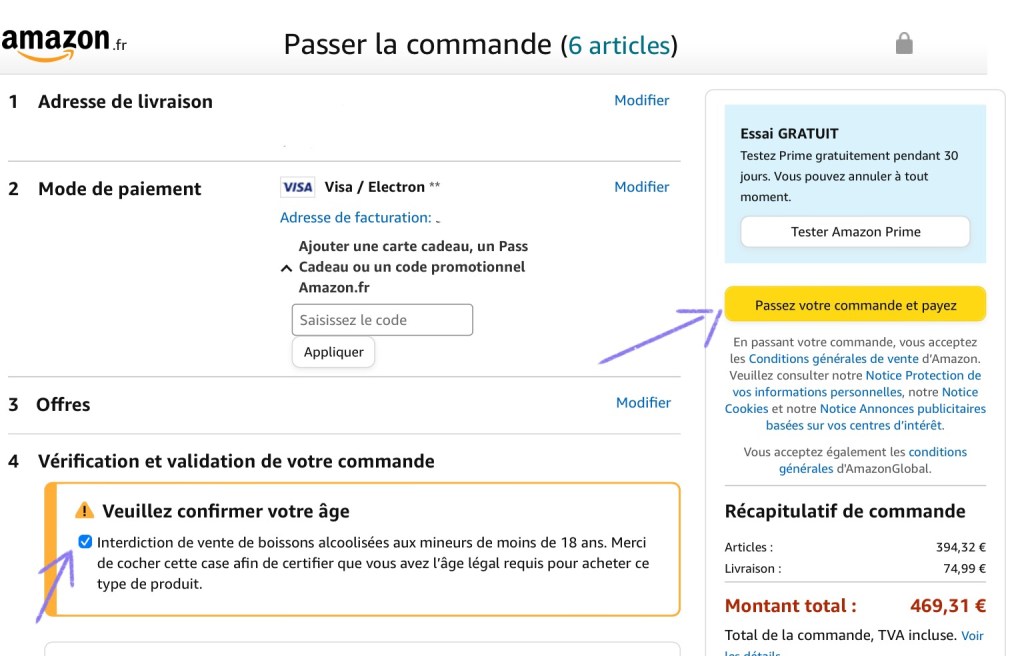
This is where you need to confirm you’re of legal age. If you are, press the tickbox “Veuillez confirmer votre âge” and then press “Passez votre commande et payez”.
Step 15:
No, that’s it really. The next screen is the confirmation screen. All Amazons should have a very similar layout, so if you can navigate one, you should be able to navigate all of them. Hope this guide helps.



 The Food and Booze Logs